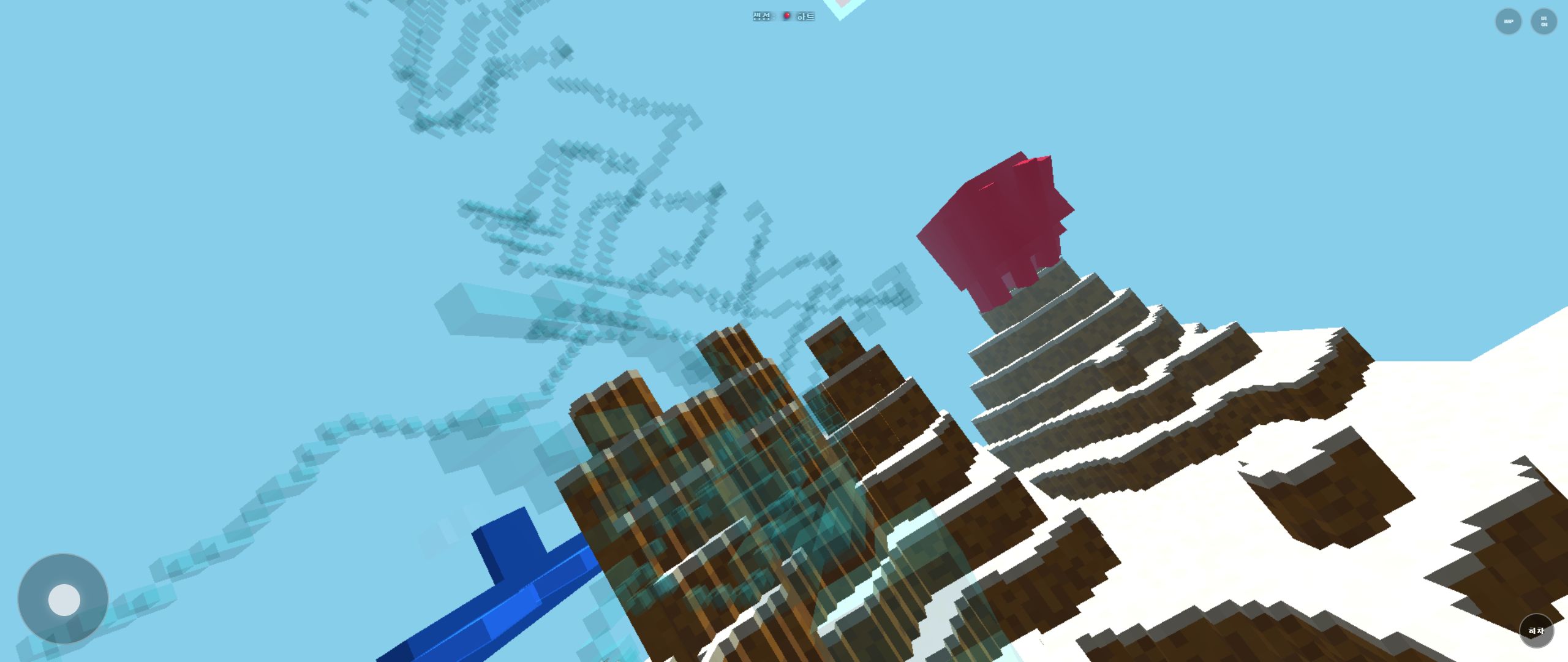
Rail Planet Controls: Walk, Fly, Drive, and Ride the Rails
Written and reviewed by: Moashoo Rail Planet Development Team
Tested build: 2026-10-12 production build · Tested on: Chrome desktop on Windows, Mobile Android Chrome
Language status: Original
Rail Planet gives you four ways to move — walking, flying, driving, and riding the rails. Each one has a different job, and switching between them at the right moment makes the game feel fast and fluid. This guide covers the controls from the ground up, written for a first-time player.
Quick summary
- Start Game (rail mode): Launches instantly onto an automatic elevated rail that traverses key landmarks.
- Start Game (freefall walking mode): Spawns you high above the terrain in a controlled freefall into foot exploration.
- Walk & Jump: Ground exploration, vehicle entry, and precise weapon aiming.
- Fly: Rapid high-altitude reconnaissance and 3D aerial dogfights.
- Drive: Ground speed on road networks with directional vehicle steering.
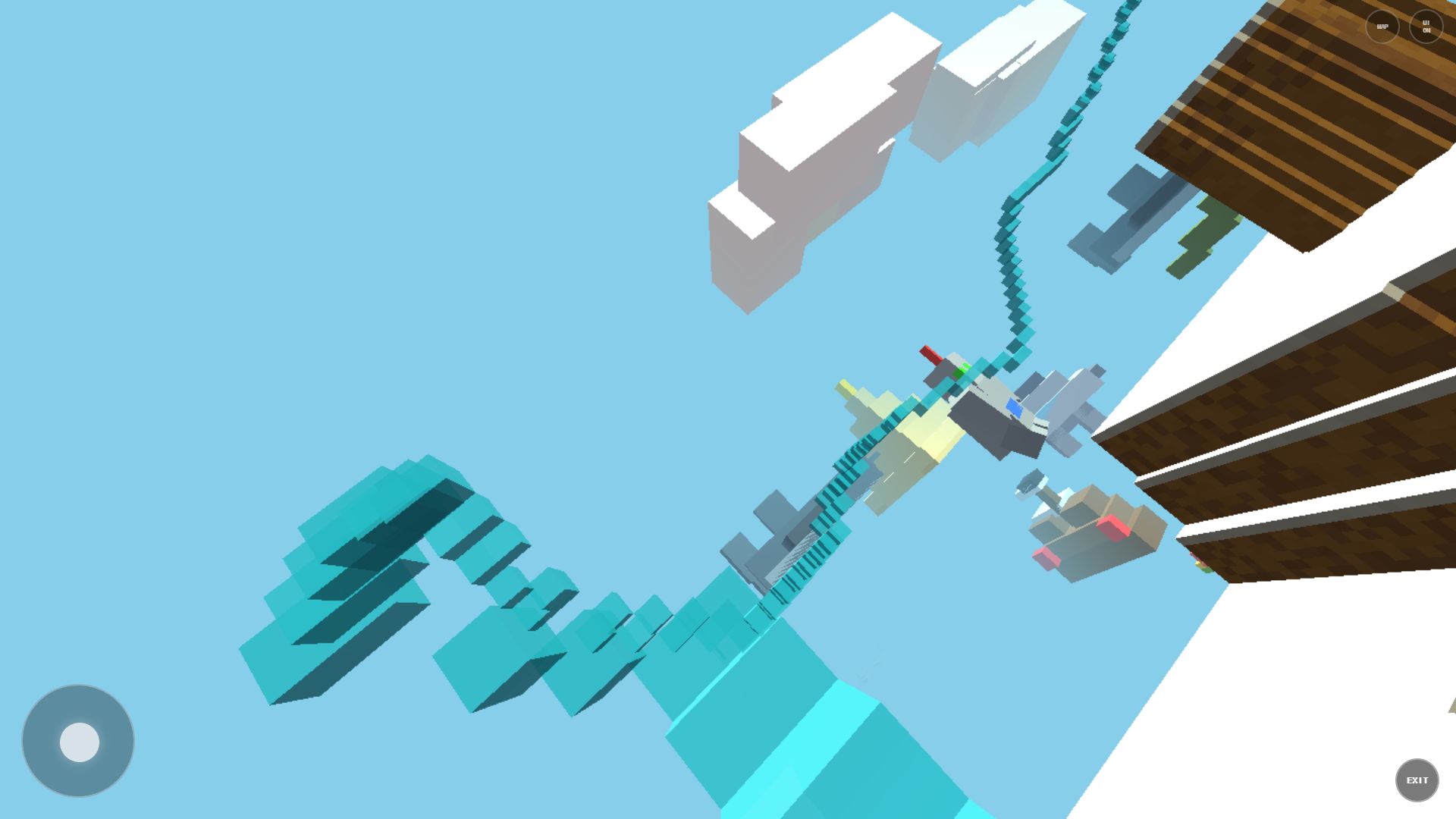
- Ride the rails: Automatic relative-height travel across voxel terrain with 360-degree firing.
0. Two Game Start Modes (October 12 Menu Renewal)
When selecting any of the 17 maps from the renewed in-game menu, you can enter the world in two different ways:
- Start Game (rail mode): Places you directly onto an active rail circuit. The rail automatically builds ahead at a safe height above ground, making it ideal for sightseeing, high-speed destruction, and immediate combat without manual pathfinding.
- Start Game (freefall walking mode): Spawns your avatar at high altitude. You glide down to choose your landing zone, entering standard ground exploration with full WASD controls upon touchdown.
If you press Esc during gameplay, the menu reopens with your active session paused. Clicking Return to game instantly resumes your current world, while selecting another map sets a Pending destination for when you start a new session.
1. Walking (default mode)
When you start a map, you are on foot. Walking is your baseline for exploring, aiming, and using weapons.
- WASD or arrows: move forward, left, backward, right.
- Mouse: look around and aim.
- Left mouse (1-4 weapons): fire your selected weapon.
- Space: jump. Press again while airborne to fly.
- Shift: boost (while flying or driving).
Walking is also how you enter vehicles — walk up to a car and you will automatically board it.
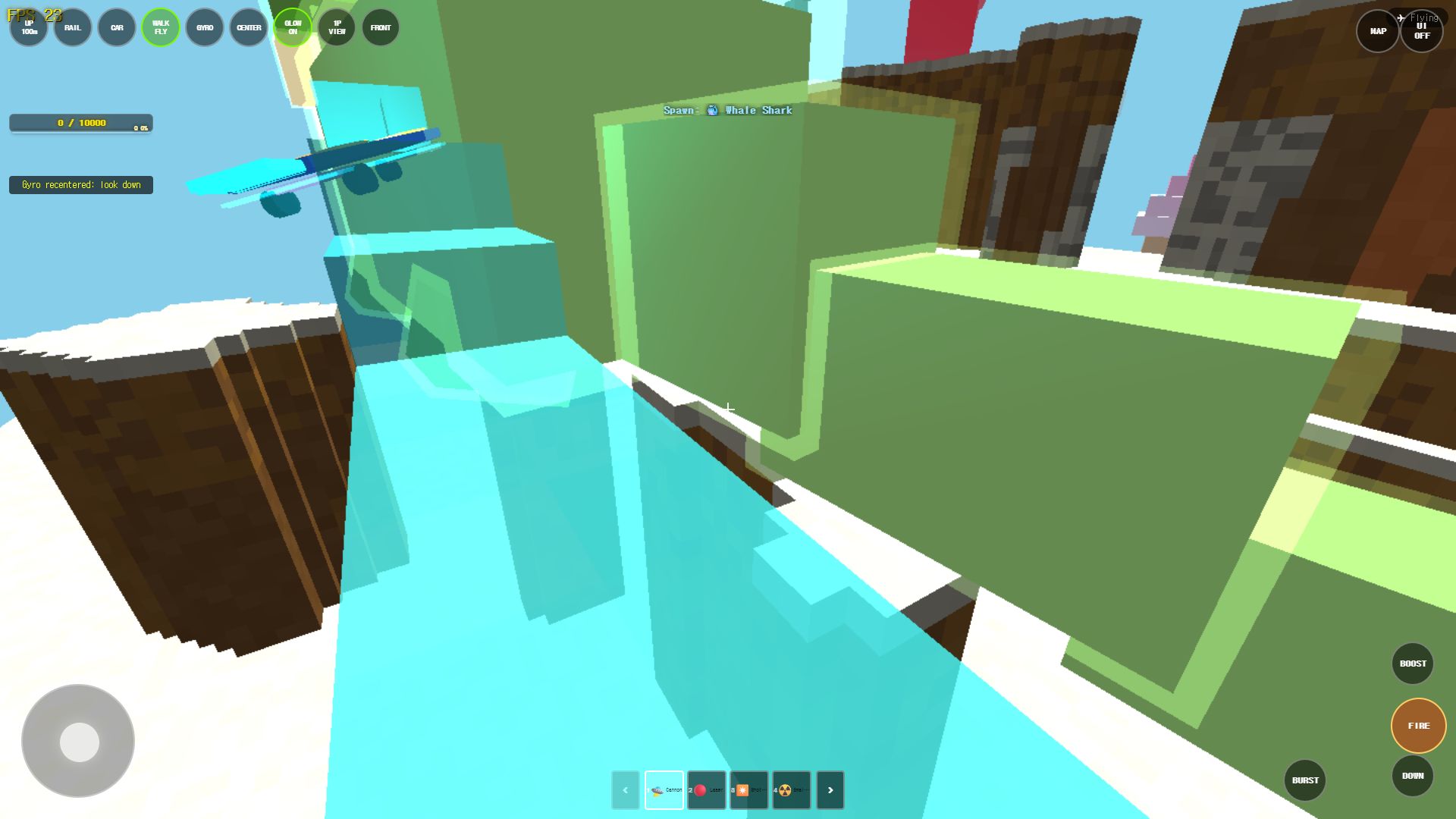
2. Flying
Flying is your scouting mode. It lets you see the whole map, find landmarks, and spot targets.
- Space while in the air: start flying.
- WASD: move in the air.
- Mouse: look around and aim.
- Shift: speed boost while flying.
- B (walk mode): land back on the ground.
Use flying to scan for enemies, plan your rail route, or escape a crowded area. You can fire weapons while flying, so aerial combat is a real option.
3. Driving vehicles
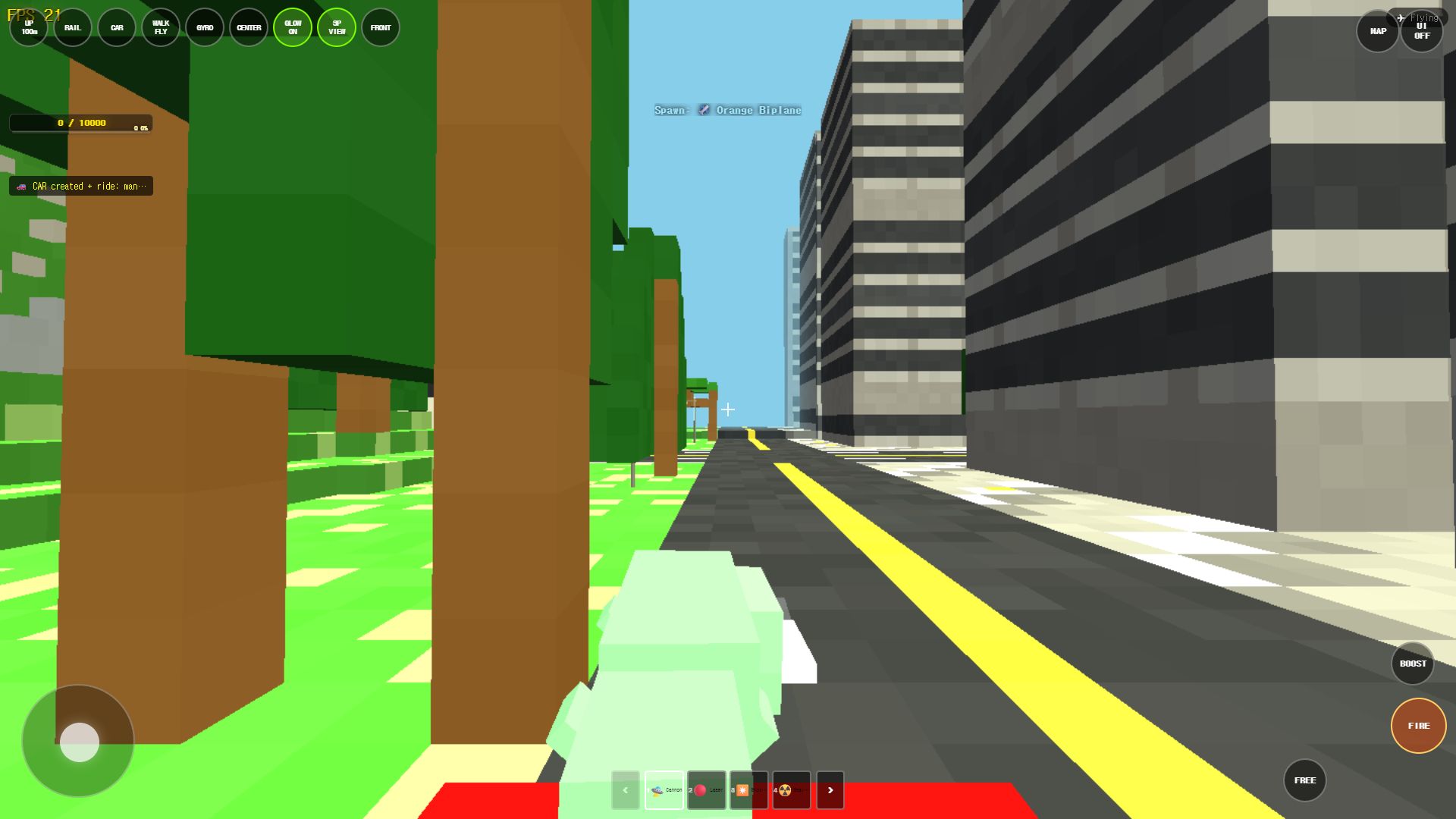
On city maps like Manhattan, cars are parked along the streets. Walk up to a car to board it.
- WASD: steer the car.
- Mouse: look around freely.
- Shift: speed boost.
- Space: jump (the car will launch).
- B (walk mode): exit the car and return to walking.
Driving is the fastest way to move across large flat areas. The steering follows your forward travel direction, so you will not flip direction just because the car briefly reverses.
4. Riding the rails
Rails are the signature transport in Rail Planet. They carry you automatically across the map.
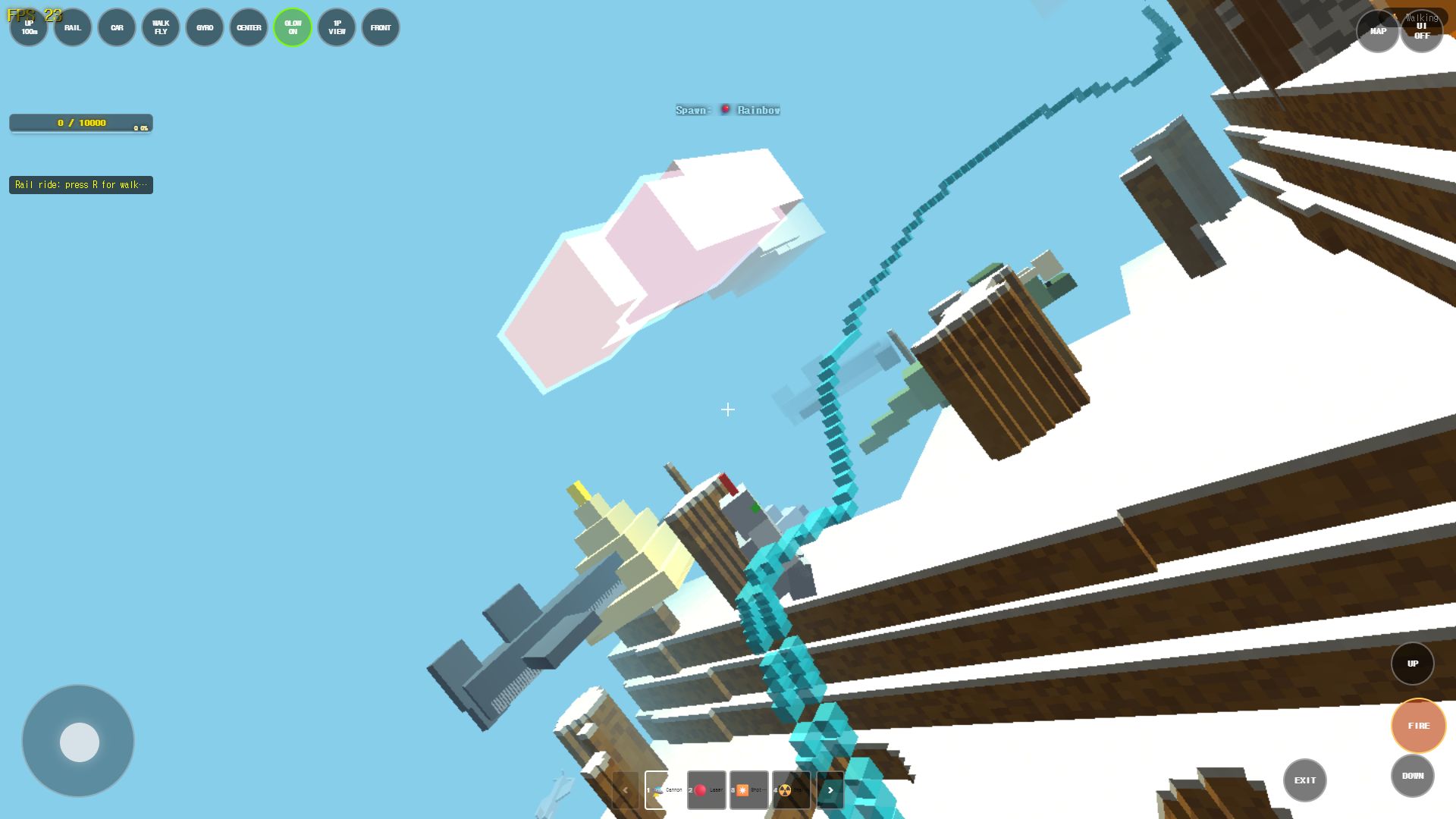
- R key: toggle rail mode. If you are on foot, a rail is created and you board it. If you are already riding, you exit.
- Mouse: look around and aim weapons while riding.
- Left mouse: fire weapons while the rail moves you forward.
The rail automatically follows the terrain at a relative height, so you can focus on aiming and destroying objects while the rail does the driving. You can switch weapons freely while riding.
On mobile, the rail board is a skateboard-like vehicle with a glow effect, and the controls are simplified.
5. Arsenal & Creation Skills Matrix
Rail Planet equips you with 4 offensive weapons and 4 world-building skills across the number keys (1–8):
| Key | Skill / Tool | Type | Range & Radius | Tactical Role |
|---|---|---|---|---|
| 1 | 🛸 Cannon | Explosive Projectile | Long range / Medium splash | High velocity baseline combat weapon |
| 2 | 🔴 Laser | Direct Hit Raycast | Effective range up to 850 units / Instant raycast beam | Precision sniping and long-range aerial target tracking |
| 3 | ✴️ Shotgun | Spread Pellet Burst | Close-to-mid range / Wide cone | High damage crowd clearing against bots |
| 4 | ☢️ Small Nuke | Heavy Explosive | Long range / Large blast radius | Major structure demolition and crater carving |
| 5 | ⛰ Mountain | Terrain Generation | Local spawn / Voxel elevation | Instant defensive high-ground and ramp building |
| 6 | 🏛 Tower | Structural Voxel | Vertical column creation | Elevated sniper vantage point construction |
| 7 | 🌱 Beanstalk | Organic Climbable | High altitude spire | Quick vertical ascent without burning flight boost |
| 8 | 🚆 Rail | Traversal Circuit | Ground tracking curve | Immediate boardable rail generation (same as R key) |
Press keys 1–8 to equip immediately. On touchscreen devices, tap the corresponding weapon buttons along the bottom HUD.
Quick reference
| Key | Action |
|---|---|
| WASD | Move |
| Mouse | Look / aim |
| Left click | Fire |
| Space | Jump / Fly |
| Shift | Boost |
| R | Rail toggle |
| B | Walk mode |
| 1-8 | Weapon select |
| P | Music toggle |
Related guides
Play the related Rail Planet maps
Continue from this field-tested guide into the original browser game developed by Moashoo.
Related guides
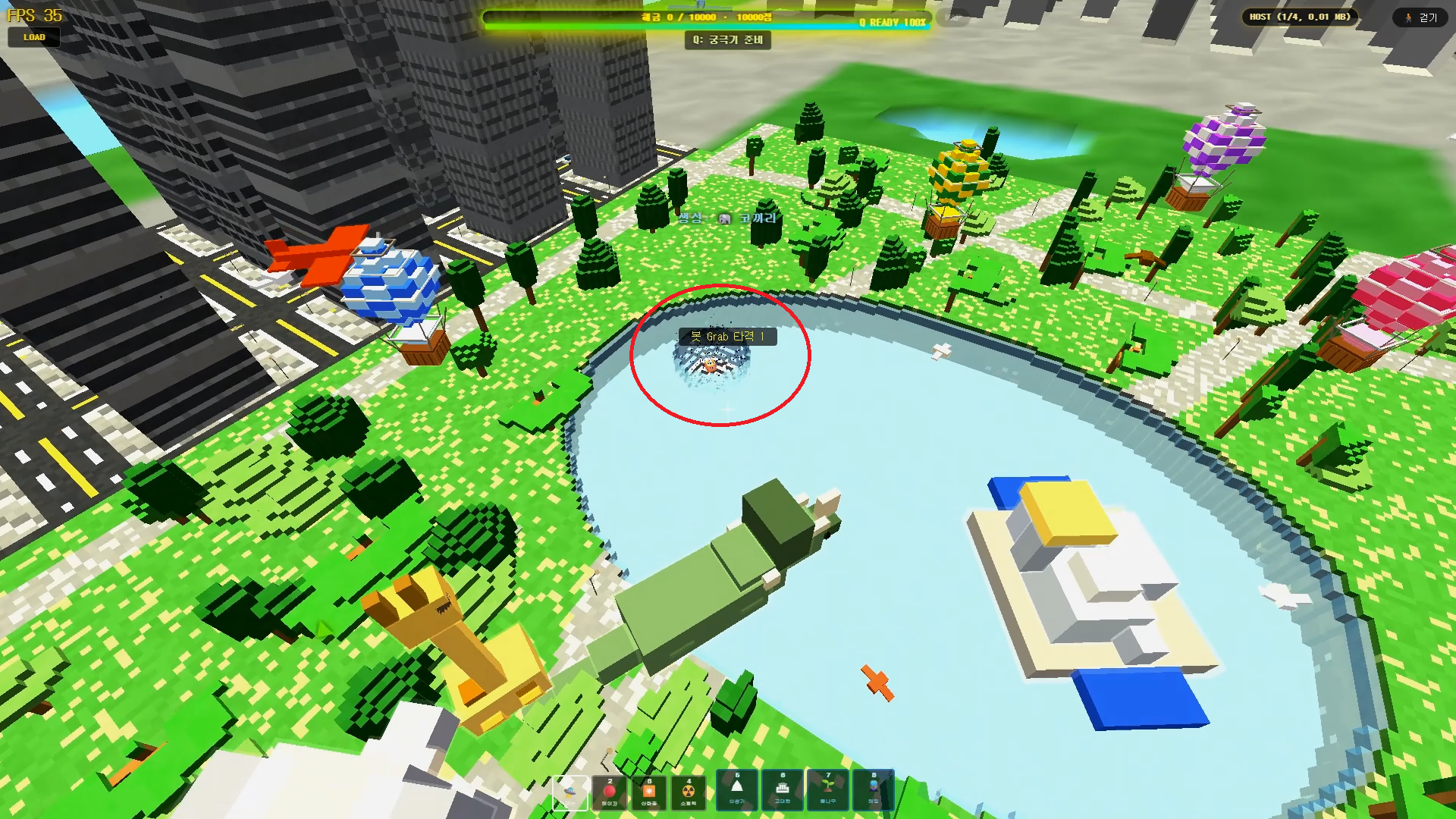
Rail Planet Close-Combat Guide: Grab, Lift, and Throw an Enemy Into the Sky
Rail Planet is not just a shooting game. Learn how the close-combat Grab system works — snap back at a target, chain vertical jumps, and slam an enemy into the ground or a lake. Works against bots and multiplayer players, with no eliminations and no end to the fun.
Read guidearrow_forward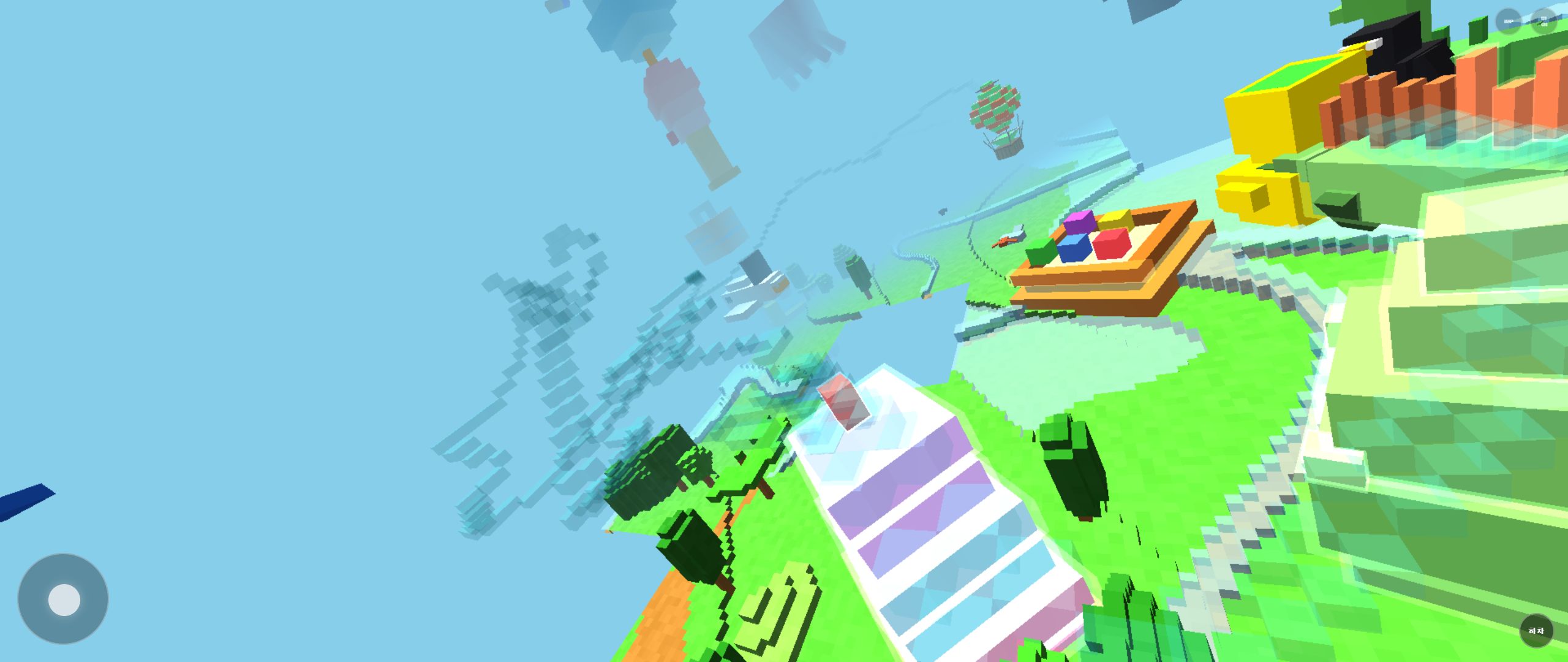
How to Report Bugs and Issues in Rail Planet
How to report reproducible bugs in Rail Planet, along with resolved engineering notes, known platform behaviors, and memory optimization insights.
Read guidearrow_forward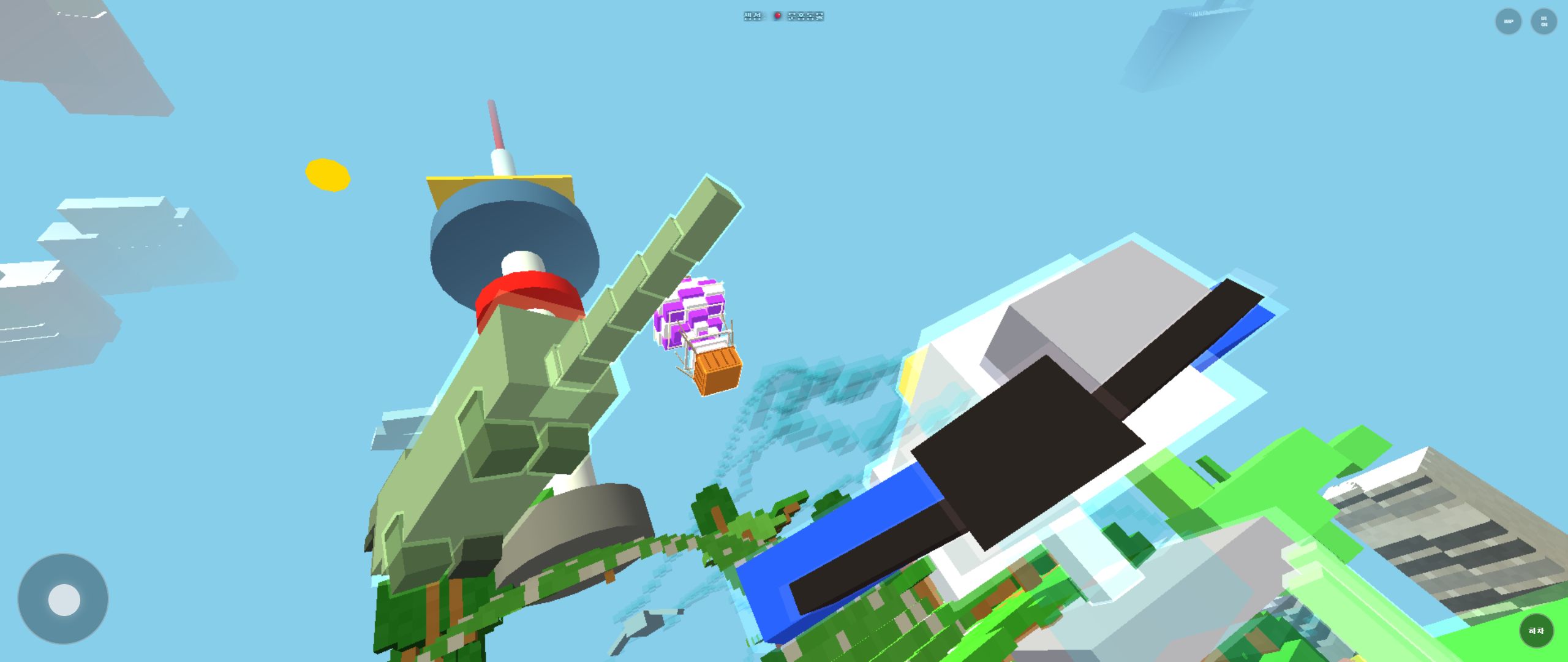
Rail Planet First-Play Guide: Finding Your Way Around the City Park Map
What to do in your first ten minutes of Rail Planet: locate the pond, the yellow landmark, and tall buildings, then move between aerial and ground views without getting lost.
Read guidearrow_forward